Design mode
Visually edit your app by selecting elements, tweaking styles, and applying the results back to your code.
Design mode provides an intuitive, visual way to refine your app's user interface. It lets you select any element in the live preview, tweak its styles with a visual panel (and/or natural-language instructions), and then apply those edits back to your source code.
Enabling design mode
Design mode is controlled from the prompt form toolbar — the same bar where you type messages to v0. Enable it in one of two ways:
- Cursor button: In the prompt form, click the cursor-style design mode button next to the other input controls.
- Keyboard shortcut: Press
Option + D(Mac) orAlt + D(Windows/Linux).Cmd + D/Ctrl + Dalso works.
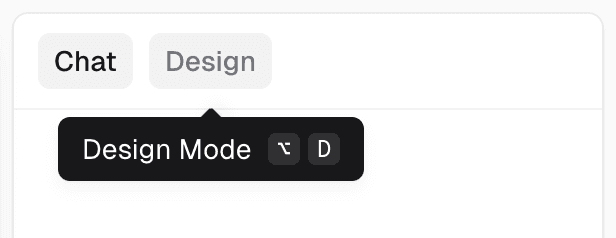
When you enable design mode, v0 switches to the Preview tab (if it wasn't already active) and overlays the design tools on top of your running app.
Design mode is only available on chats that use the latest preview runtime, and only on the latest version of the chat. It is not available on read-only chats or on mobile viewports.
Selecting elements
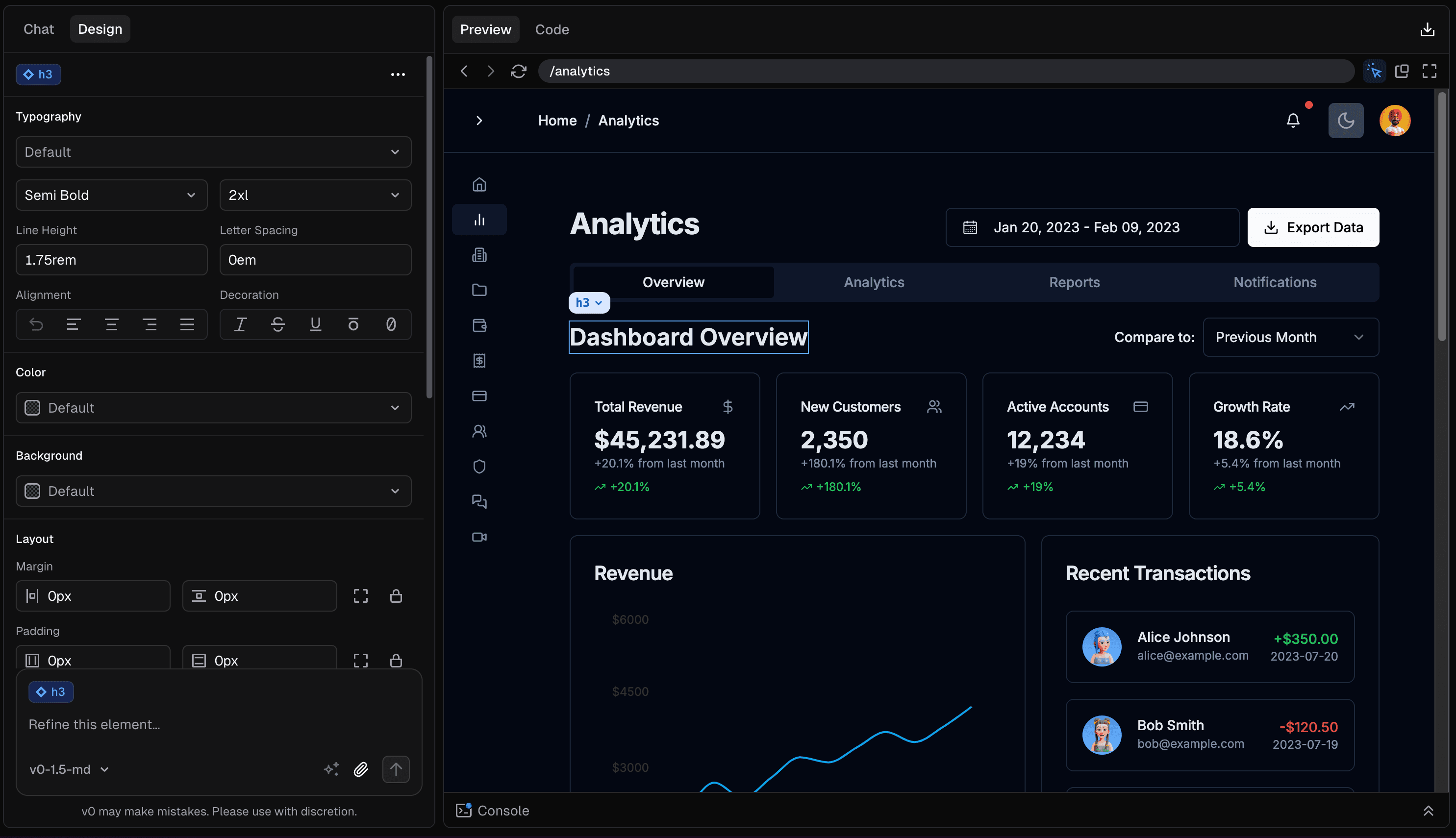
With design mode on, your cursor becomes a selection tool. As you hover over your running app in the preview, elements are highlighted. Click an element to select it, and v0 will show selection handles plus the design panel for that element.
To toggle between selecting elements and interacting with your app normally, use the Inspect control in the design panel, or press Cmd + I / Ctrl + I. Press Escape to deselect the current element.

Modifying elements
Once an element is selected, you have two ways to change it — and you can combine them on a single element before applying.
1. The design panel (for fine-tuning)
The design panel offers a suite of controls for making precise visual adjustments. It's ideal for tweaking styles to perfection. The panel includes:
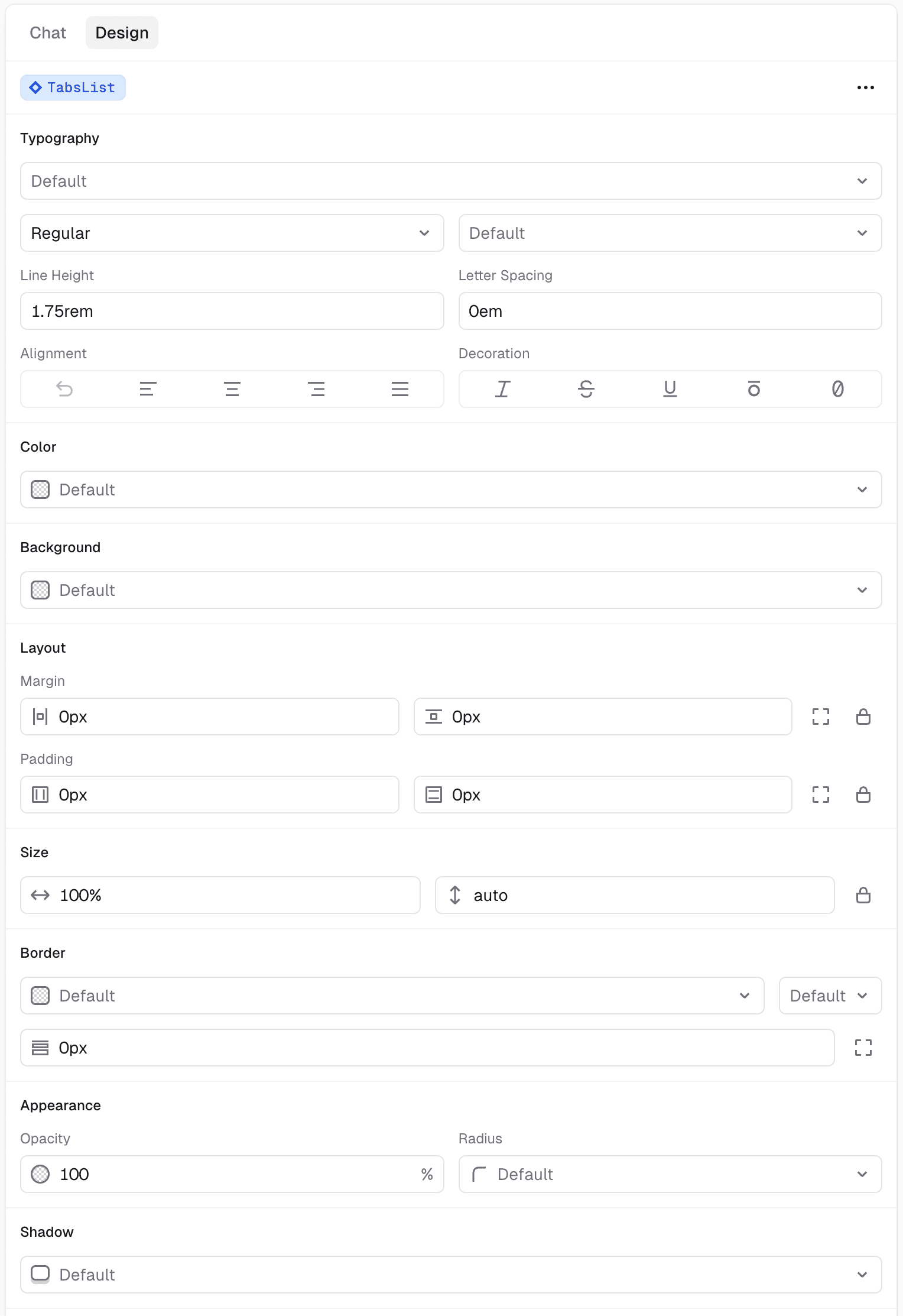
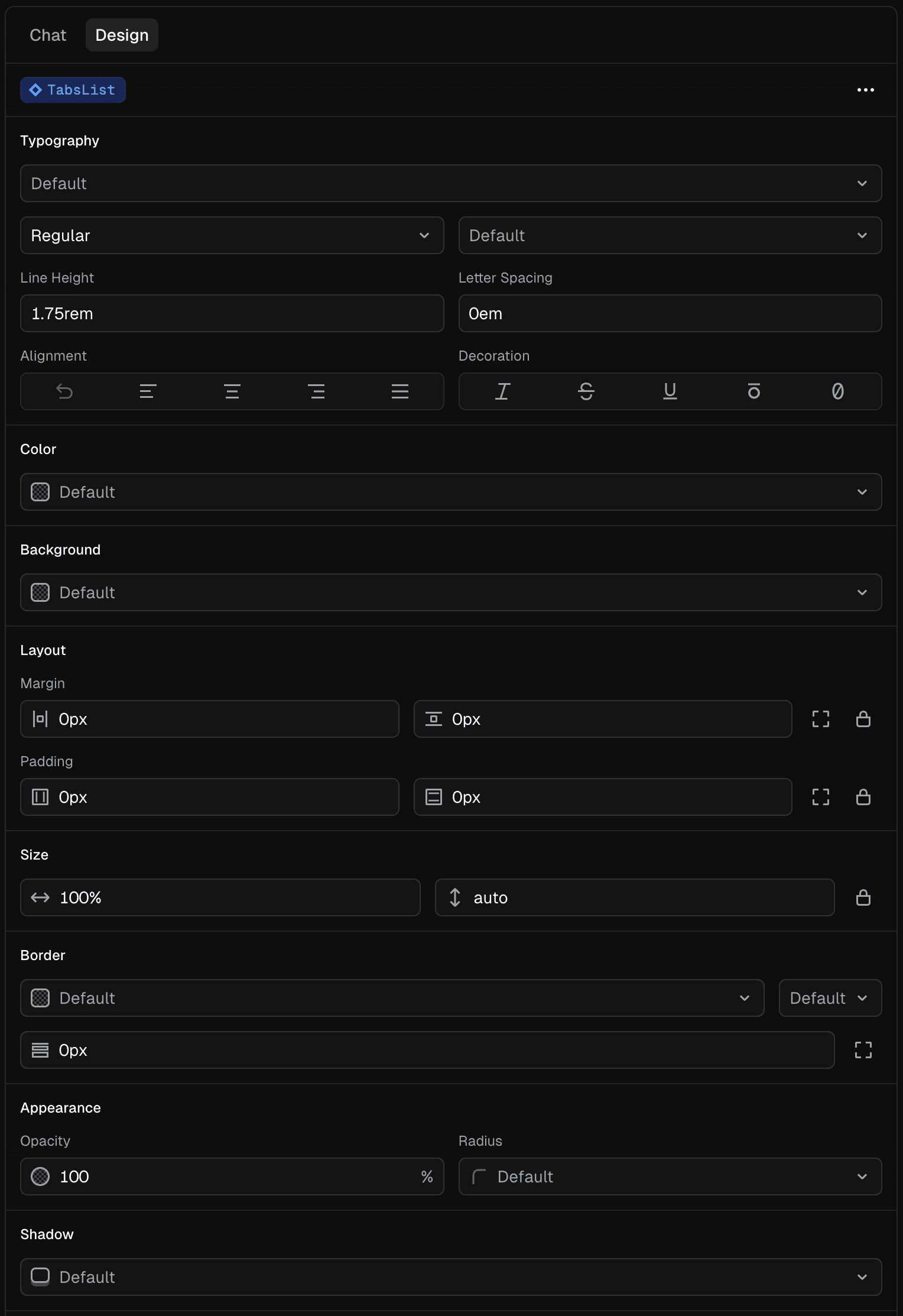
- Typography: Font family, size, weight, line height, letter spacing, alignment, and text decoration.
- Color: Text color.
- Background: Background color.
- Layout: Margin and padding on all sides.
- Border: Border color, style, and width.
- Appearance: Opacity and corner radius.
- Shadow: Add or customize box shadows.
- Content: Directly edit the text content of an element.
Tweaks made in the panel are applied live in the preview so you can see the result immediately. They're held as pending edits until you apply them (see below).
Design mode detects when your app is using Tailwind CSS and will surface Tailwind-compatible values where appropriate. Class and token coverage depends on what's defined in your project.
2. Instructions (for complex changes)
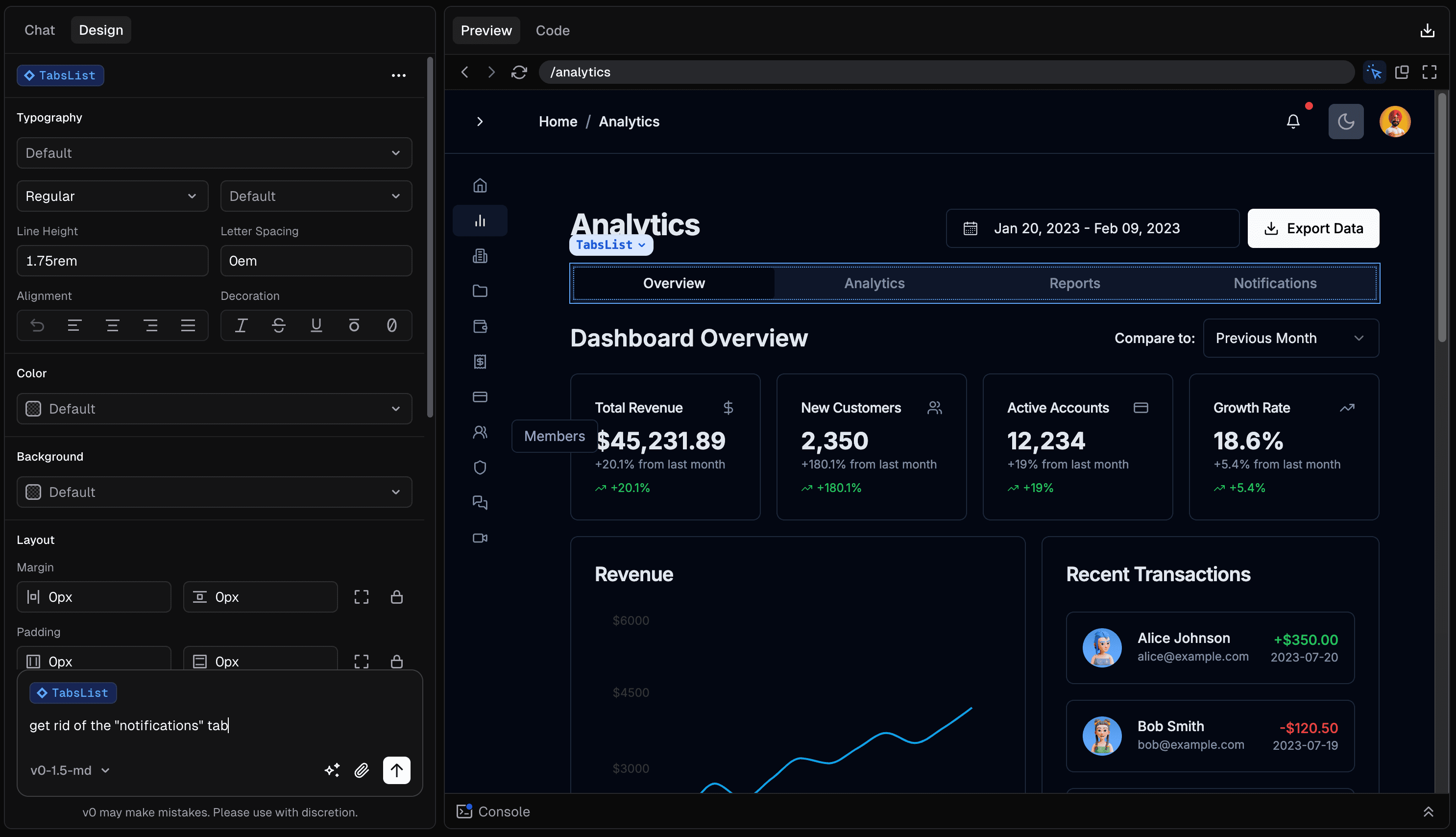
For anything structural or hard to express in the panel — "add a button next to this text", "make this a three-column grid", "match the style of the card above" — type a natural-language instruction into the text box in the design panel. v0 automatically attaches a screenshot of the selected element along with your instructions.

Undo, redo, reset, and preview
While you're editing, the panel exposes controls to help you iterate before committing:
- Undo / Redo: Step back and forward through your pending tweaks.
- Reset: Clear all pending design-mode edits on the current element.
- Before / after preview: Temporarily toggle off all pending edits so you can compare your changes with the original.
Pending edits are kept until you apply them or leave the chat. If you try to navigate away while there are unapplied edits, v0 will warn you.
Applying your edits
When you're happy with your changes, click Apply in the design panel. v0 serializes your edits (and any instructions / screenshots), sends them to the chat, and generates an updated version of your project that reflects the changes in your source code. Because Apply produces a new chat version, you can review the diff, keep iterating, or revert just like any other v0 edit.


Key features
- Works on your real app: Design mode runs against the live preview of your project, so what you see is exactly what your users will see.
- Visual and prompt-based edits together: Combine precise panel tweaks with natural-language instructions on the same element before applying.
- Edits are committed as a new version: Applying creates a normal v0 chat version, so every design-mode change is diffable, reviewable, and revertable.
- Tailwind-aware: When your app uses Tailwind CSS, design mode surfaces Tailwind-compatible values where possible.